File formats
The files that PDIndexer reads and writes fall into three groups: profile data, crystal lists / crystal structures, and drawing output. All of these I/O operations are accessed from the File menu of the main window.
This page summarizes the supported extensions, the I/O direction, and notes in table form.
Profile data
Reading (Read profile(s))
File → Read profile(s) lets you load several files at once. In addition to PDIndexer's own pdi / pdi2 format, it supports a variety of angle-vs-intensity (or energy-vs-intensity) text and binary formats such as WinPIP's csv, Fit2D's chi, and Rigaku's ras. Even formats not listed below can usually be read: any plain angle-vs-intensity text file falls back to a generic parser.
| Extension | Origin / format | Notes |
|---|---|---|
pdi / pdi2 |
PDIndexer native format | Keeps the profile together with its associated information (wave source, wavelength, exposure time, etc.). pdi2 is the current version. The Data Converter dialog is not shown when reading these. |
csv |
WinPIP output (comma separated: angle,intensity) |
Imported via the Data Converter dialog, where you specify the meaning of the horizontal axis, the wave source, and the wavelength. |
tsv |
Tab separated (angle [TAB] intensity) |
Imported as generic text. |
chi |
Fit2D output | The leading header lines are skipped; columns 2 and 4 of the four-column data are taken as angle and intensity. |
ras |
Rigaku format | Text format that also contains instrument information. |
nxs |
NeXus / HDF5 (SSD, multiple detectors) | May contain several channels (histograms); each is energy-calibrated and imported separately. |
npd |
EDX profile (SSD) | Reads EGC0/1/2, 2Theta, Live time, etc. from the header and converts the channel number to energy. |
xbm |
EDX binary format (e.g. SP-8 BL04B2) | Metadata such as sample name, measurement conditions, and EGC calibration coefficients are imported as a comment. |
rpt |
Genie format (SSD) | Reads the take-off angle, exposure time, and EGC from the header. |
xy |
pyFAI-calibrated two-column text | Reads the wavelength from the header and imports angle vs. intensity. |
gsa |
GSAS data (BANK block) |
Imports the three columns: angle, intensity, error. |
| Other | Generic angle-vs-intensity text | The comma / whitespace / tab delimiter is detected automatically (via the Data Converter dialog). |
Loading several files at once
When you select and read multiple files, after you confirm the Data Converter settings for the first file a message asks whether to reuse the same settings for the remaining files. Choosing Yes processes the rest without showing the dialog, which speeds up loading.
Data Converter dialog
When you read any file other than pdi / pdi2 (csv, chi, ras, nxs, npd, xbm, rpt, xy, gsa, and generic text), the Data Converter dialog opens. It is where you map the imported numeric columns to the correct physical quantities used internally by PDIndexer.
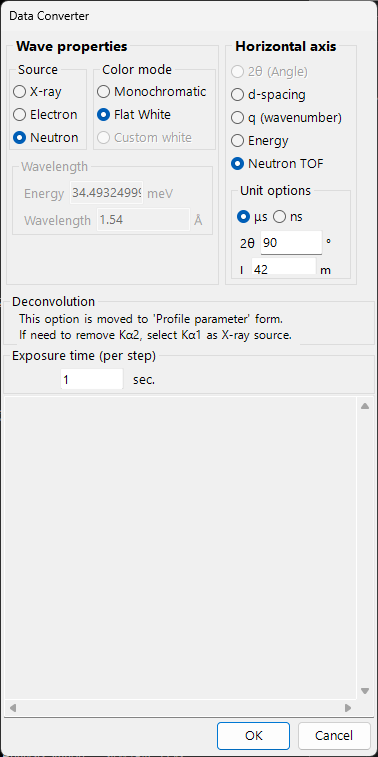
The dialog provides the following settings.
| Setting | Description |
|---|---|
| Horizontal Axis | The physical quantity (2θ, energy, d-spacing, wavenumber, TOF, etc.) and unit represented by the first imported column. |
| Wave source / wavelength | X-ray / neutron / electron, and the characteristic X-ray line (Kα, etc.) or the wavelength. This determines the conversion to d-spacing and 2θ. |
| Exposure time (per step) | The exposure time per step in seconds. Used for CPS display and intensity normalization. |
| For SSD data | For SSD (EDX) data such as rpt / npd / xbm / nxs, set the coefficients \(a_0, a_1, a_2\) that convert the channel number \(n\) to energy \(E\). When there are multiple detectors, you can enable/disable each one and set its coefficients individually. |
| Low energy cutoff | When checked, data points below the specified energy are excluded on import. |
For SSD data, the channel number \(n\) is converted to energy \(E\) (in eV) by a quadratic calibration:
When reading generic text (an "other" format), the dialog shows the actual file contents in a text box so you can set the horizontal axis, wave source, and so on while inspecting the data. The delimiter (comma / whitespace / tab) and the number of leading header lines to skip are detected automatically.
Watching the clipboard / a folder
Enabling Option → Watch Clipboard lets PDIndexer automatically import profiles copied from other apps such as IPAnalyzer. Enabling Watch File automatically reads newly created pdi files in a chosen folder.
Saving and exporting
File → Save profile(s) saves all loaded profiles in PDIndexer's native pdi2 format.
File → Export the selected profile(s) writes the selected profile in one of the following formats.
| Extension / format | Direction | Notes |
|---|---|---|
pdi2 |
Out | PDIndexer native format. Saves all profiles at once. |
csv |
Out | Comma separated (angle, intensity). |
tsv |
Out | Tab separated (angle and intensity separated by a tab). |
gsa (GSAS) |
Out | GSAS format for Rietveld analysis. You can review the contents in the export screen below. |
Exporting in GSAS format
When you choose the GSAS format, an export screen appears so you can review what will be written. Line 1 is the profile name, line 2 is a BANK 1 … CONST … FXYE header, and the following lines hold three columns: angle, intensity, and error. The error is taken from the profile's own error data when present; otherwise \(\sqrt{\text{intensity}}\) is used.
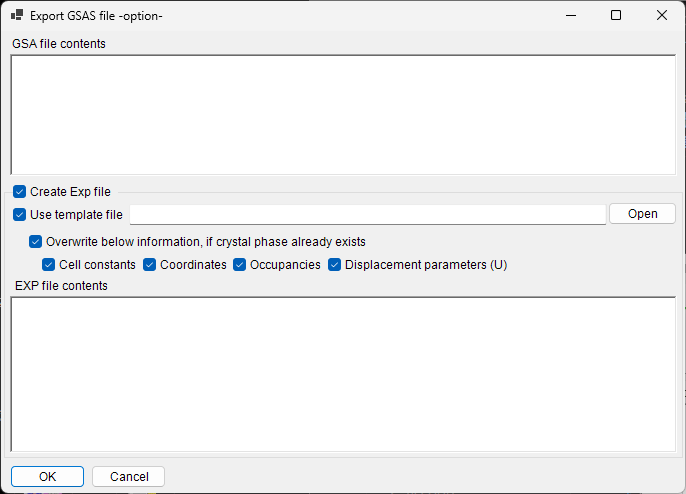
Angle scaling
For ordinary angle-dispersive data, the angle values are written multiplied by 100 (the GSAS CONST convention). For neutron TOF data, the values are written as-is, without scaling.
Crystal lists and crystal structures
Crystal lists are saved and loaded as XML files (extension xml). Individual crystal structures can be imported from CIF / AMC. See Crystal parameter for details.
| Operation (File menu) | Extension | Direction | Notes |
|---|---|---|---|
| Load crystals (as a new list) | xml |
In | Loads a crystal list and replaces the current list (the current list is discarded). |
| Load crystals (and add to the present list) | xml |
In | Loads a crystal list and appends it to the end of the current list. |
| Save crystals | xml |
Out | Saves the current crystal list to a file. |
| Import CIF, AMC... | cif / amc |
In | Adds structure data in CIF format or AMC (AMCSD) format to the current crystal list. |
| Export the selected crystal to CIF | cif |
Out | Saves the selected crystal as a CIF structure-data file. |
| Revert crystals to the initial state | — | — | Restores the crystal list to its default state as installed. |
Drawing (profile viewer) output
The profile currently shown in the main window can be copied to the clipboard as an image or saved as a vector metafile.
| Operation (File menu) | Format | Direction | Notes |
|---|---|---|---|
| Copy to Clipboard (as Bitmap data) | Bitmap | Clipboard | Copies the viewer contents to the clipboard as a bitmap image. |
| Copy to Clipboard (as Metafile data) | Metafile (vector) | Clipboard | Copies the viewer contents to the clipboard in vector form. |
| Save as Metafile | emf (EMF) |
Out | Saves in EMF (Enhanced Metafile) format. Because it preserves vector and font information, the saved emf can be read into PowerPoint and Word. |
In addition, Page Setup, Print Preview, and Print let you print the current angle and intensity range directly.