Runtime and installation
This page describes how to install PDIndexer and the environment recommended for comfortable operation.
Installation
Download the latest release from the GitHub releases page.
The recommended method is the MSI installer. Download PDIndexerSetup.msi and double-click it to start installation.
If MSI installation is blocked on a managed Windows PC, use the no-install ZIP package as an alternative. Download PDIndexer-*-win-x64-portable.zip, extract the full folder to a user-writable location, and run PDIndexer.exe from the extracted folder. Do not run PDIndexer.exe directly from inside the ZIP viewer.
About the Windows protection warning
When you run newly downloaded unsigned research software, Windows may display a SmartScreen warning ("Windows protected your PC"). If this happens, click More info and then choose Run anyway to continue.
About the no-install ZIP package
The ZIP package is intended as an alternative for environments where MSI installation, administrator approval, or separate .NET Desktop Runtime installation is difficult. It is not a fully self-contained settings folder: PDIndexer still stores user settings and copied default data under the current user's AppData folder, and may store per-user options under HKEY_CURRENT_USER\Software\Crystallography\PDIndexer.
Runtime requirements
The following runtime is required when PDIndexer is installed from the MSI installer.
| Item | Requirement |
|---|---|
| OS | Windows (64-bit) |
| Runtime | .NET Desktop Runtime 10.0 (the Desktop Runtime, not the plain .NET Runtime) |
Choose the Desktop Runtime
The download page offers two products: the ".NET Runtime" and the ".NET Desktop Runtime". Because PDIndexer is a WinForms application, be sure to install the .NET Desktop Runtime. The plain ".NET Runtime" alone will not launch the program.
- Download the runtime: https://dotnet.microsoft.com/download/dotnet/10.0
The no-install ZIP package is self-contained for Windows x64 and does not require a separate .NET Desktop Runtime installation.
About the version stated in older docs
The legacy manual (docx) mentions ".NET Desktop Runtime 6.0 or later", but the current PDIndexer requires .NET 10.0. Follow the requirement of the latest version.
Recommended environment
Some PDIndexer features require substantial computational resources. To improve speed, computation is multithreaded wherever possible. For comfortable use, a computer with the following high-performance specifications is recommended.
| Item | Recommended |
|---|---|
| OS | Windows 11 (Windows 10 or later, 64-bit, also works) |
| RAM | 16 GB or more |
| CPU | 8 cores or more (effective for multithreaded computation) |
Benefit of multithreading
Diffraction-pattern calculations using crystal structures, sequential analysis, and similar tasks run faster with more CPU cores. The more cores your CPU has, the shorter the computation wait time.
Updates (checking for new versions)
From the Help menu of the main window, PDIndexer lets you update to the latest version and view author information.
| Menu | Function |
|---|---|
| Help ▸ Program Updates | Checks whether a newer version has been released and updates the program. |
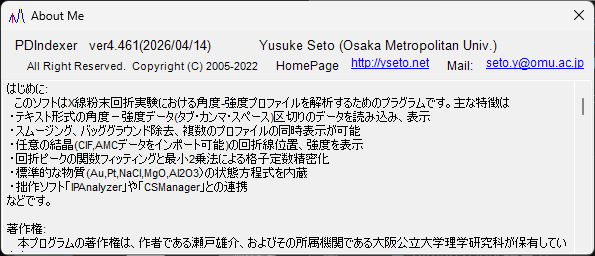
| Help ▸ About Me | Displays version and author information. |
Choosing Help ▸ About Me opens a window like the one below, where you can check the current version number and author information.
Update regularly
Bug fixes and new features are added continuously. Run Help ▸ Program Updates from time to time to keep PDIndexer up to date.
License
PDIndexer is distributed under the MIT License. Use, modification, distribution, and commercial use are freely permitted, provided that the copyright notice and license text are included with any redistribution. The software is provided without warranty.