Tools
This page describes the auxiliary tools launched from the vertical toolbar on the right of the main window, or from the menus. For concrete procedures using parameter calibration and macros, see Procedures.
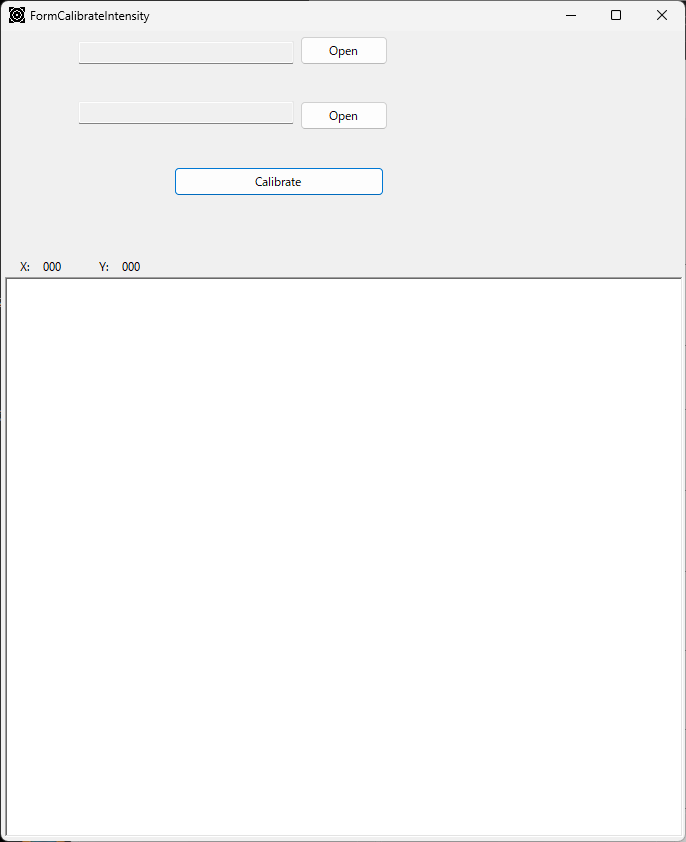
Intensity Table
A tool that compares the intensity distributions of two images and optimizes an intensity-conversion table. It optimizes 16 control points over 300 iterations to match the two intensities while preserving the total integrated intensity. It is used, for example, to calibrate the intensity response of a detector.
Auto Procedure
A tool that watches a folder, loads new images automatically, and runs a sequence of operations after loading.
- Watch and auto-load: monitors the specified folder (including subfolders) and reads a file after its write completes. Files can be filtered by name (number matching, keyword).
- Auto execution: runs the checked steps, in order, out of Auto Contrast → Find Center → Mask Spots → Get Profile → Execute Macro.
This allows uses such as watching an output folder during an experiment and integrating each image automatically as it arrives. See Procedures for details.

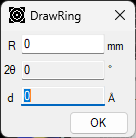
Draw Ring
Draws a ring at a specified distance, angle, or d-value on the image, accounting for the IP tilt and pixel distortion. Click one of R (mm) / 2θ (°) / d (Å) to choose which value to edit; the others are computed automatically from the wavelength and camera length.
Unroll
Unfolds the diffraction image from polar coordinates centered on the direct spot into Cartesian coordinates (horizontal axis = angle, distance, or d-value; vertical axis = azimuth). It is now configured not with a dedicated window but with the Unroll toolbar button and the Unrolled Image Option tab of the properties. Unrolling uses the same sub-pixel intensity-distribution algorithm as one-dimensionalization.
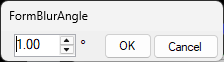
Circumferential Blur
A tool that blurs the ring pattern along the circumferential (azimuthal) direction. Specify a single blur angle and apply it.
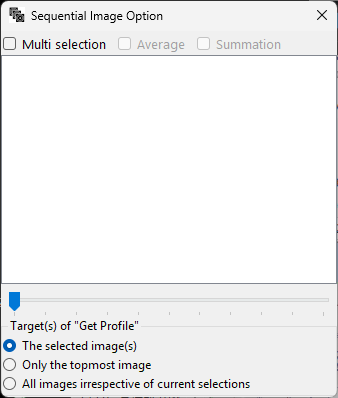
Sequential Image
A tool for handling multi-frame images (HDF5 and similar; time series, temperature series, synchrotron energy scans).
- Select a single frame from the frame list to display it, or step through with the trackbar.
- With multi-selection, select several frames and compute their average or sum.
- The target of one-dimensionalization can be chosen from "all frames / selected frames / topmost only".
- If each frame carries energy information, the wavelength is updated automatically.
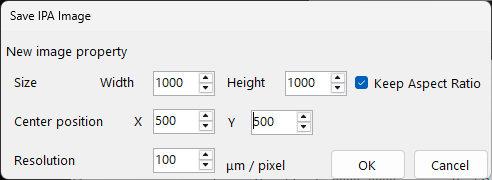
Save Image (IPA format)
Corrects the IP tilt φ, τ and the pixel distortion ξ, and saves the image with square pixels at a specified resolution. Metadata such as the camera length, wavelength, and center position are written as well, so the image can be passed to other image processing while preserving the geometric information.
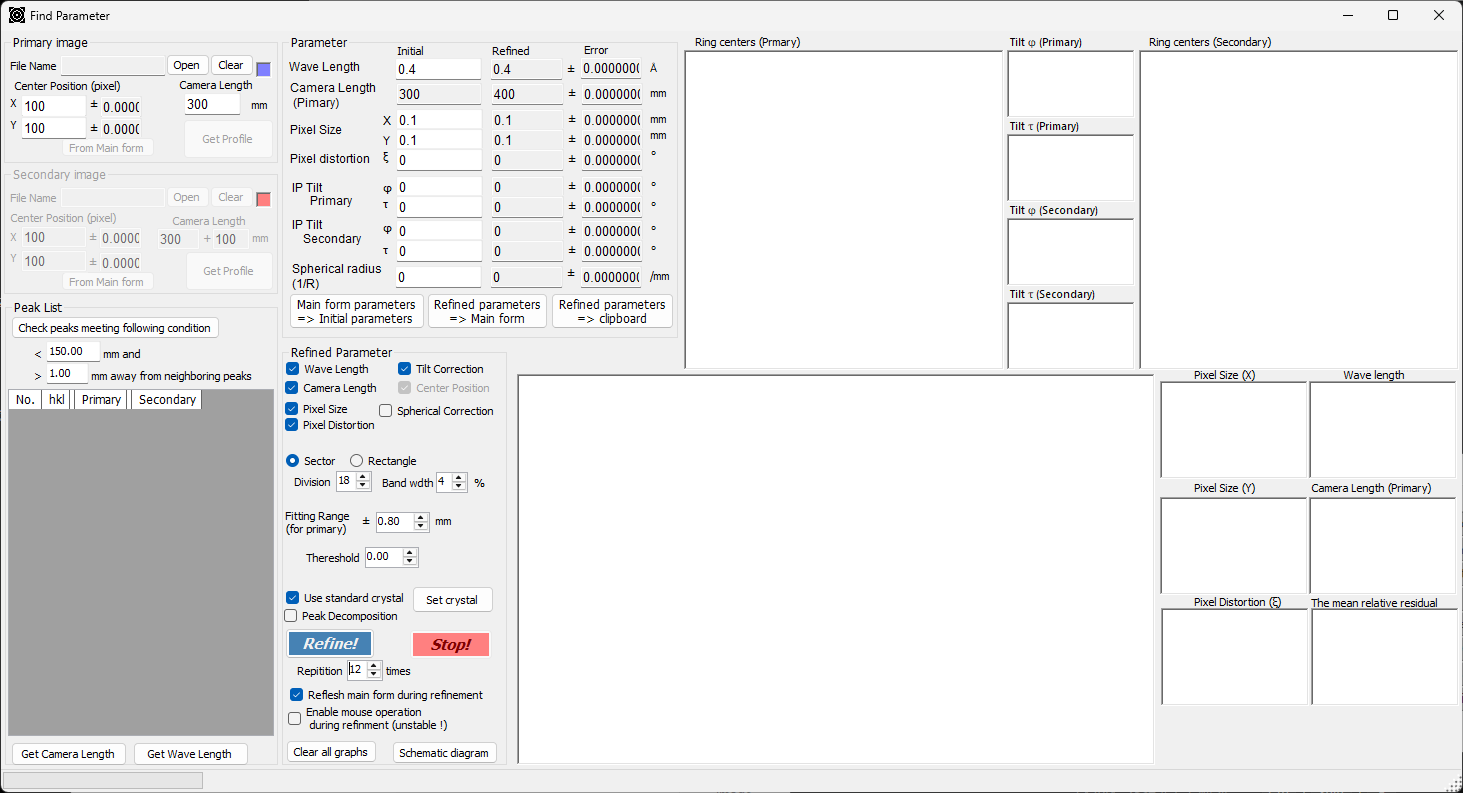
Find Parameter (Geometric)
A tool that optimizes the wavelength, camera length, pixel size, pixel distortion, and tilt (φ, τ) from the diffraction rings of a standard material. It uses two patterns, Primary and Secondary, and you select peaks and optimize with Refine!. The convergence (ellipse center, residuals) can be checked on the graphs. See Procedures for the concrete steps.
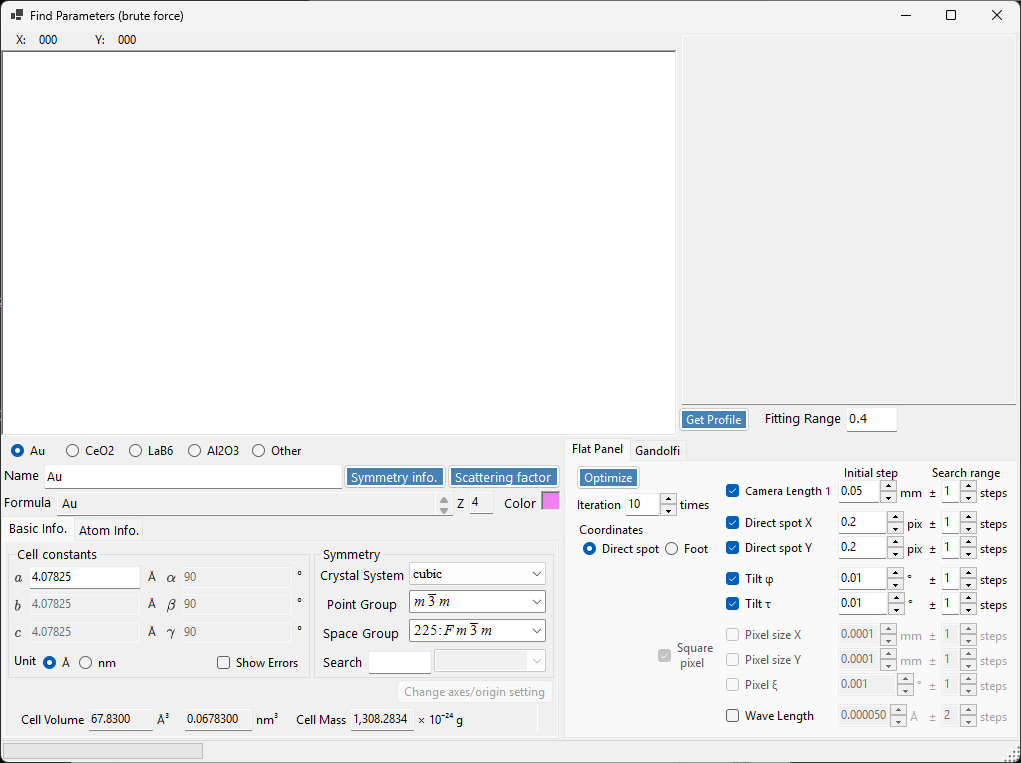
Find Parameter (Brute force)
A tool that finds the camera length and wavelength by an exhaustive grid search rather than a gradient method. It is effective when geometric optimization struggles to converge, such as with incomplete rings or noisy data. The CrystalControl is used to enter the crystal parameters. See Find Parameter (brute force) for the detailed steps, and Procedures for the workflow.
Macro
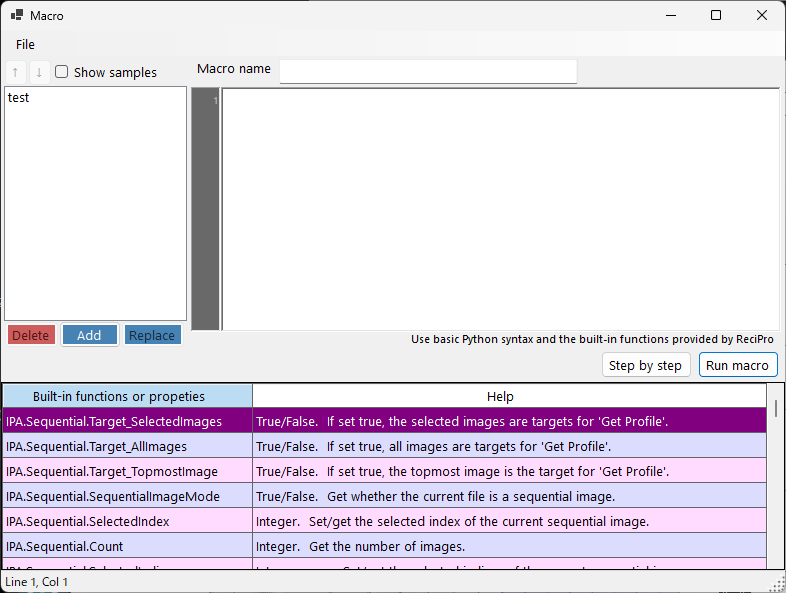
A feature that automates operations with Python-like scripts. Open the macro editor from the Macro → Editor menu in the main window.
for/if/while/def/class, arithmetic, and themathmodule are available.- APIs such as
IPA.File/IPA.Wave/IPA.Detector/IPA.Profile/IPA.Sequential/IPA.Image/IPA.Mask/IPA.PDI/IPA.IntegralPropertylet you call each operation. - Sample macros (basic loops, geometry setup, batch processing, azimuthal division, masking, sending to PDIndexer, etc.) are bundled, and you can inspect variables with step execution.
See Macro for the full function reference and examples, and Procedures for macro-based workflows.
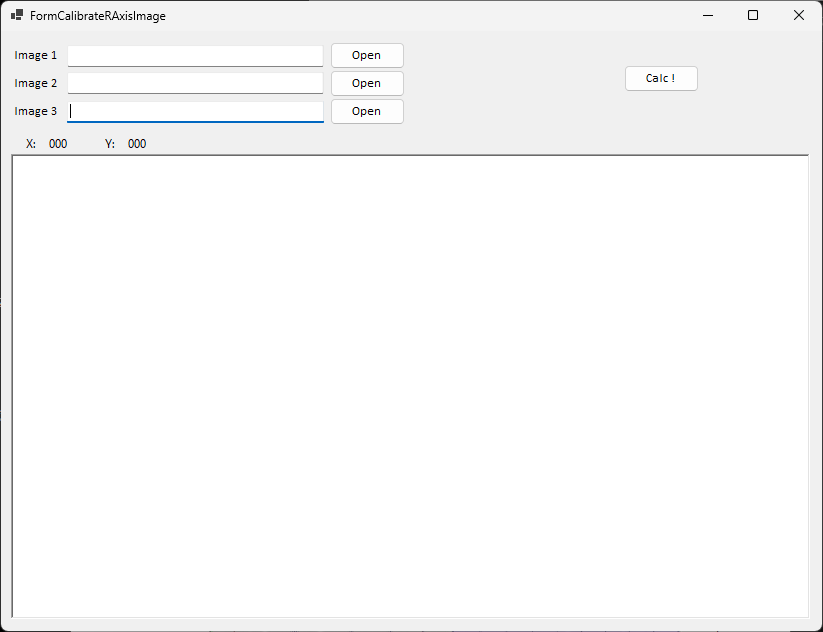
Calibrate R-Axis Image
A tool intended for the intensity correction specific to R-Axis detectors; at present it only reads the file, and the correction itself is not yet implemented.