Macro
IPAnalyzer provides a macro feature that automates sequences of operations with Python-like scripts. It is useful for repetitive work such as batch one-dimensionalization of many files, format conversion, and azimuthal-division analysis.
Opening the editor
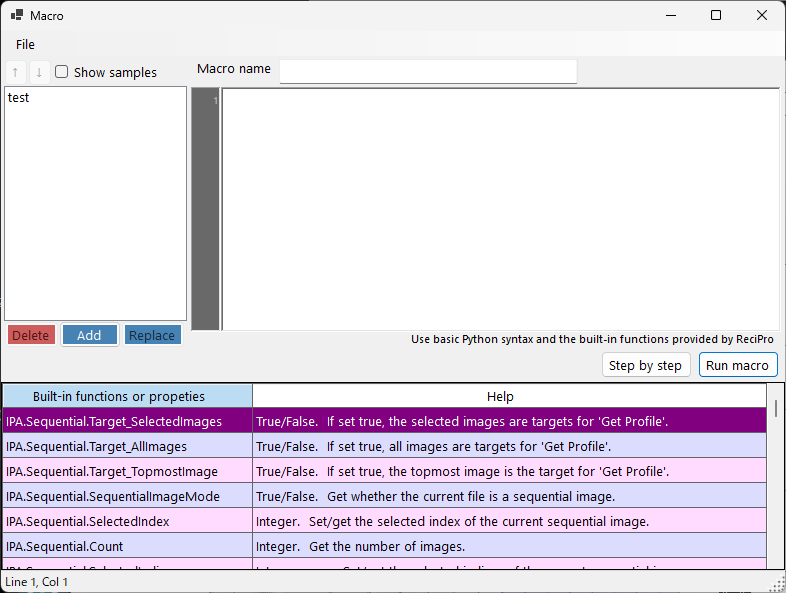
Open the macro editor from the Macro menu → Editor in the main window. You can edit code there and run it, including step-by-step execution.
Language
- Control statements such as
for/if/while/def/class, and arithmetic, are available. - The
mathmodule is pre-imported, so you can usemath.piormath.sin(...)directly without animportstatement. print()is not available. To inspect values, use step execution (Step by step) and watch the variables change in the debug panel.- Each IPAnalyzer operation is called from a namespace under the
IPAroot object (e.g.IPA.File).
IPA namespaces
| Namespace | Role |
|---|---|
IPA.File |
Read/write image, parameter, and mask files; file-selection dialogs |
IPA.Wave |
Set the incident source and wavelength |
IPA.Detector |
Set detector geometry: center, camera length, pixel size, tilt |
IPA.Image |
Control display scale, contrast, and view area |
IPA.Mask |
Mask spots and regions |
IPA.Profile |
Run one-dimensionalization (Get Profile) and configure saving/sending |
IPA.IntegralProperty |
Set the range, step, and unit of concentric / radial integration |
IPA.Sequential |
Select / average / target frames of a multi-frame image |
IPA.PDI |
Call macros on PDIndexer (clipboard integration) |
See Built-in functions for the member list, and Examples for concrete scripts.
The in-editor help is the authoritative reference
The description of each function/property is shown in the macro editor's help and is the up-to-date, version-tracking source of truth. If this page disagrees with the in-editor help, trust the latter.
Sample macros
When the editor's saved-macro list is empty, sample macros (basic loops, math functions, geometry setup, batch processing, azimuthal division, masking, sending to PDIndexer, etc.) are inserted automatically. They are an easy starting point to adapt.
Working with Auto Procedure
Macros you write can be saved by name and also called from the "execute after loading" list of Auto Procedure, so that a macro is applied automatically to each image arriving during an experiment.